
Explain visually, annotate, sketch: your online whiteboard appears live on every participant's screen. Class, workshop or working meeting, everyone sees the same thing at the same time. Freehand drawing, shapes, colours and image import.
Get started for free →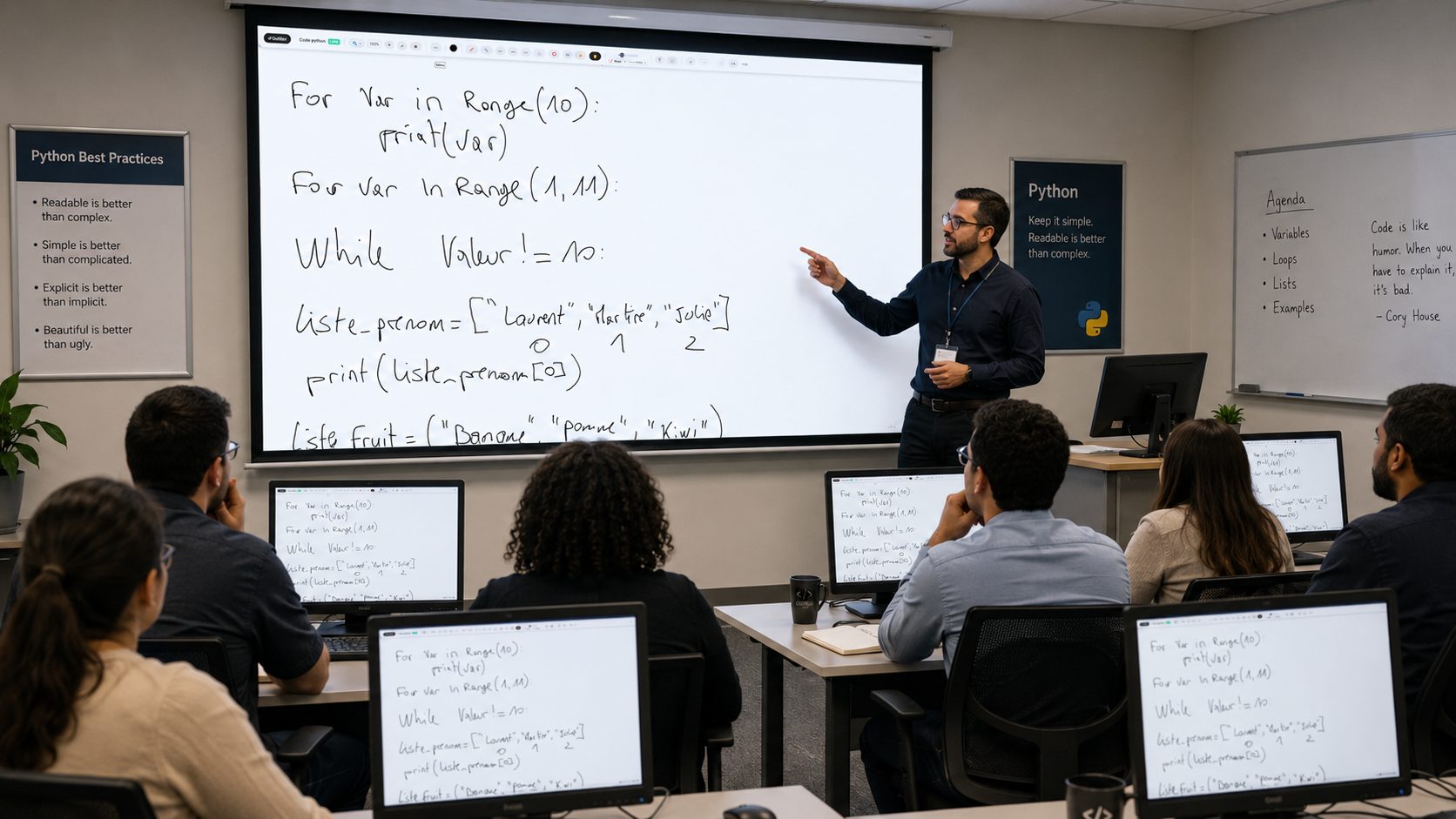
An online whiteboard recreates, in the browser, the free writing surface of a classroom board. Use it to explain a concept, correct an exercise, sketch an idea or draw while you talk — the audience watches everything take shape live.
EduTools' whiteboard is used inside a room: your participants have nothing to install, they follow your annotations in real time from their screen. It's the ideal tool to make an explanation concrete.
You get a pen, shapes (lines, rectangles, arrows), an eraser, a wide choice of colours and a text tool. The board is deliberately larger than the screen: you can extend it in every direction so you never run out of room.
You can also import an image — a diagram, a photo, an exercise — and annotate on top of it. The hand tool lets you move the image and pan around the board without erasing anything.
Pen, shapes, eraser and over 20 colours to explain visually.
Drag an image in or paste it from the clipboard, then annotate over it.
Extend the board in every direction; you never run out of space.
Move images and content with no risk of erasing your work.
Your annotations appear instantly on participants' screens.
Keep several boards per room and pick them up again later.
A session from the trainer's side, the same from a participant's side, and the list of who is on the board.
A three-column frame set up in one click from a template, text zones added as the session goes, and a freehand annotation to circle the formula of the day.
The same board, live. When you open collaborative mode, participants also get the pen, the shapes and the eraser; the tools reserved for the host stay on your side.
The connected counter opens the list of people on this particular board, you included, and shows who is currently drawing.
Nothing to prepare: a board is created in one click and stays available from one session to the next.
From "Whiteboards", create the board then link it to the relevant room. Participants reach it without any extra link.
Two distinct uses: you write and the group watches, or everyone contributes. Open writing to all for brainstorming, keep it closed for a lecture.
Pen, shapes, text zones and image import. A photo of a textbook page or an imported diagram becomes material for collective annotation.
Content is saved: reopen the board next session to pick up where you left off, or export it to share.
One platform instead of your slide deck, your quiz tool, your forms, your file storage and your attendance sheet.
No more scattered tools!
Create your free account in minutes. No credit card, no install required for your participants.
Get started for free →