
Twenty-three tutorials, one per tool, filmed inside the software. Each one runs under five minutes and takes you from the first click to the result.
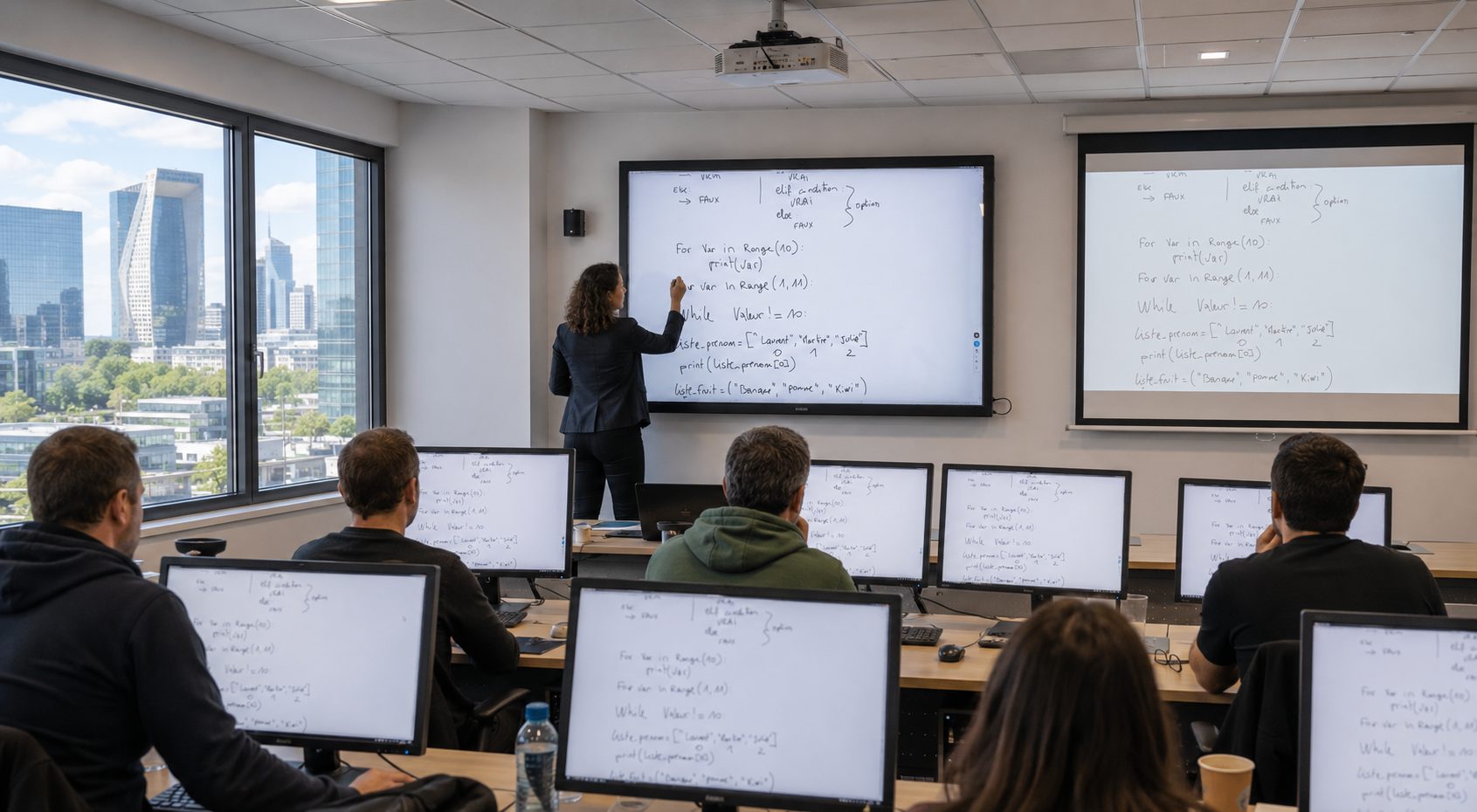
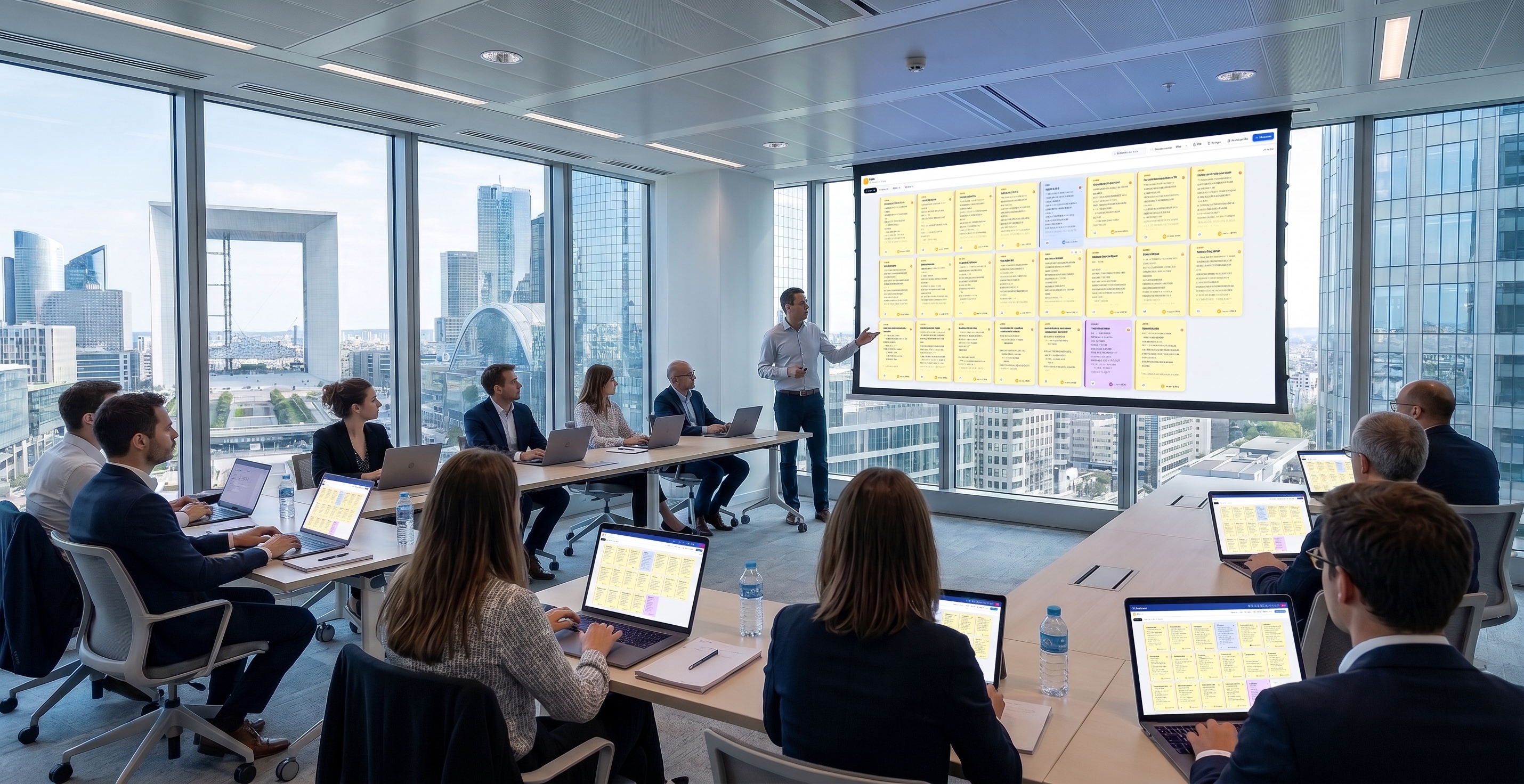
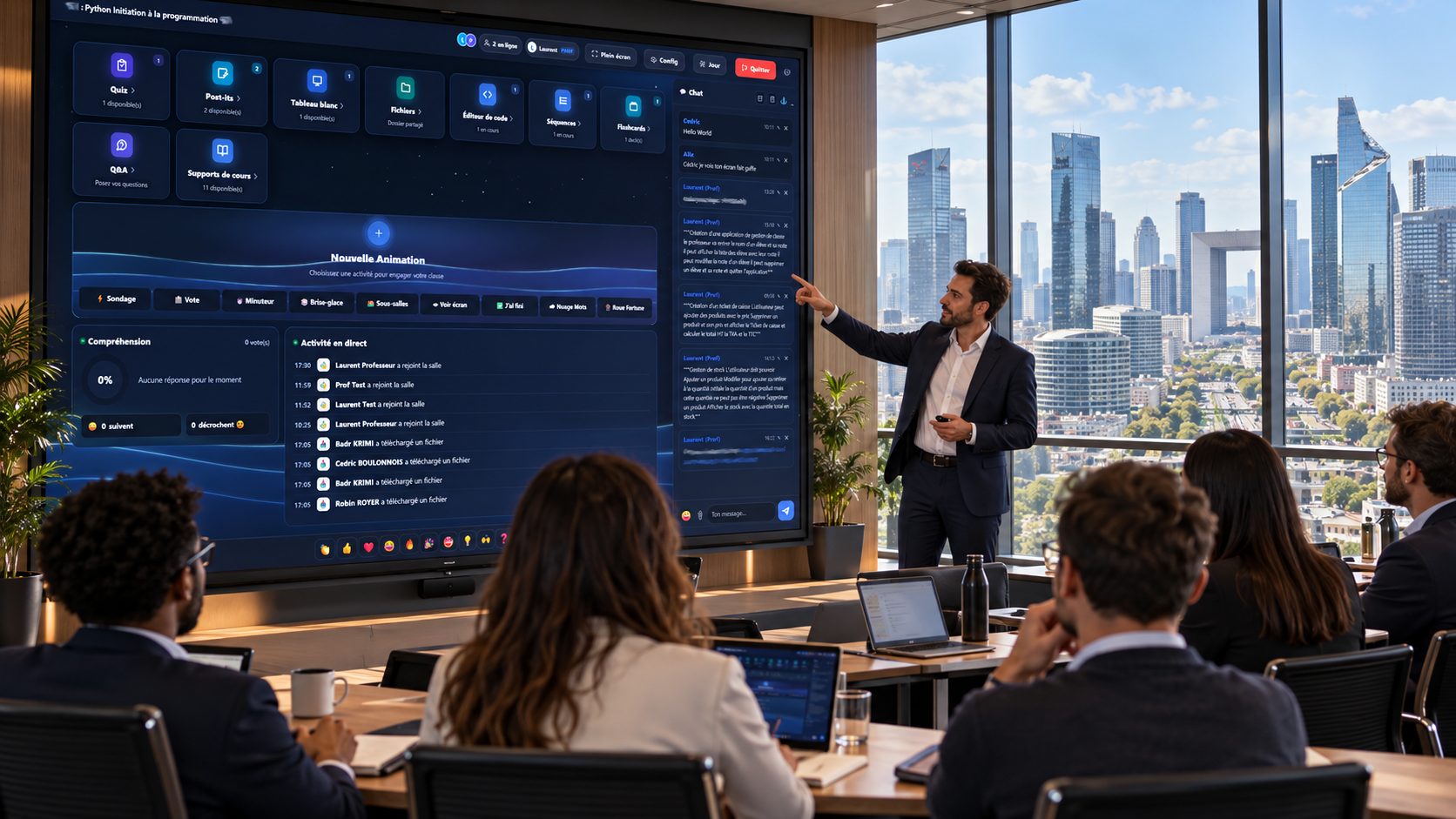
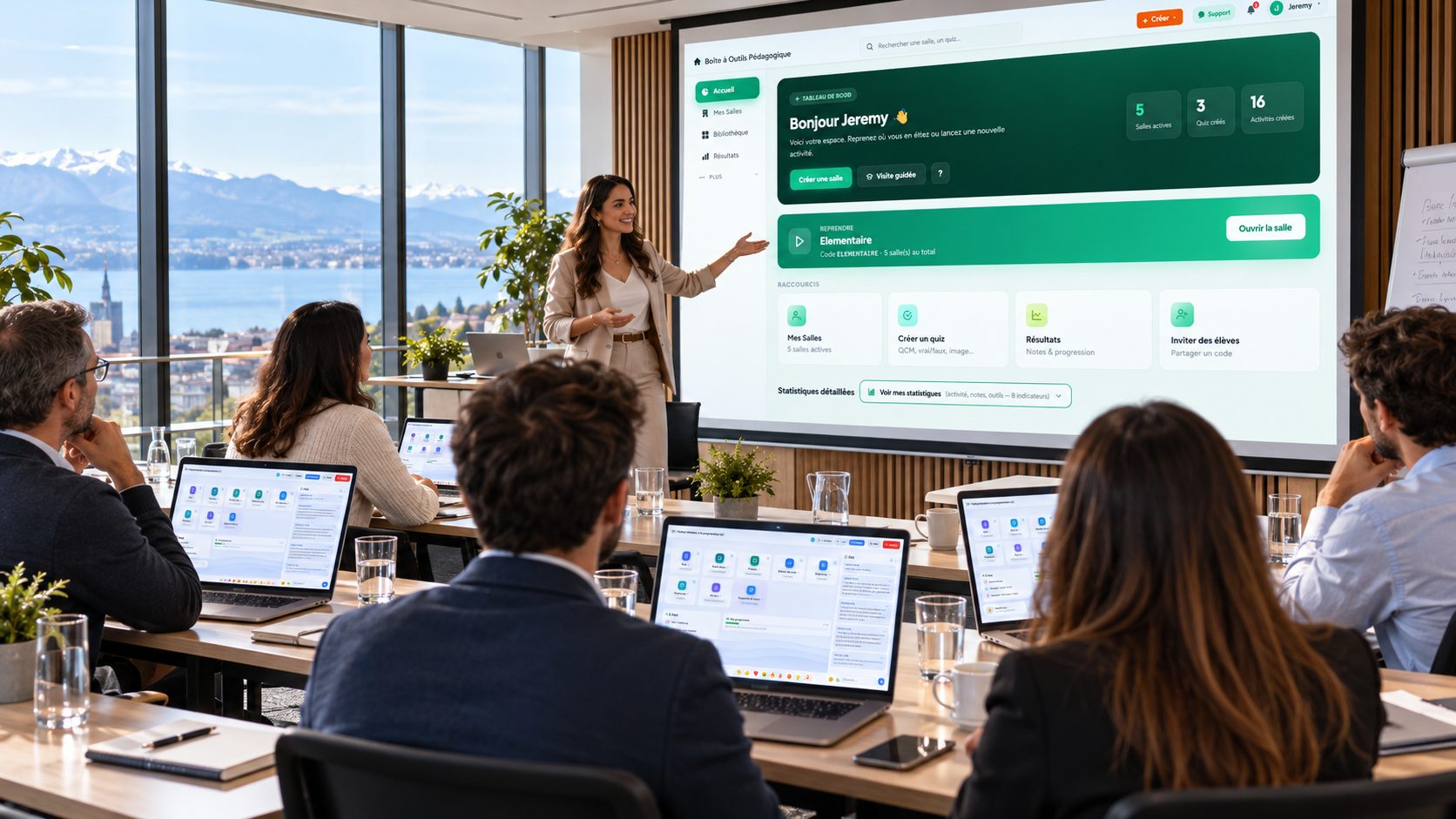
Eighty-six pages, screenshots included, in your language. Read it on screen or print it.
No tutorial matches this search. Try another word or choose “All tools”.
 1 min 55
Rooms
Creating a room
In this first tutorial we create a classroom in under two minutes. It is the starting point of every session.
Watch the tutorial →
1 min 55
Rooms
Creating a room
In this first tutorial we create a classroom in under two minutes. It is the starting point of every session.
Watch the tutorial →
 2 min 13
Rooms
Setting up your room
Your room exists. Let us now look at who may come in, and which tools your learners will find there.
Watch the tutorial →
2 min 13
Rooms
Setting up your room
Your room exists. Let us now look at who may come in, and which tools your learners will find there.
Watch the tutorial →
 3 min 14
Rooms
The card's menu
Every room has a discreet menu, at the top right of its card. It holds ten actions, and that is where the live view of your session lives.
Watch the tutorial →
3 min 14
Rooms
The card's menu
Every room has a discreet menu, at the top right of its card. It holds ten actions, and that is where the live view of your session lives.
Watch the tutorial →
 2 min 52
Quizzes and questions
Creating a quiz
The quiz is the most used tool on the platform. Let us see how to create one, and how to write its questions.
Watch the tutorial →
2 min 52
Quizzes and questions
Creating a quiz
The quiz is the most used tool on the platform. Let us see how to create one, and how to write its questions.
Watch the tutorial →
 2 min 47
Quizzes and questions
Running a quiz
Your quiz exists. There are four ways of playing it, and each one serves a different moment of your session.
Watch the tutorial →
2 min 47
Quizzes and questions
Running a quiz
Your quiz exists. There are four ways of playing it, and each one serves a different moment of your session.
Watch the tutorial →
 2 min 56
Teaching content
Flashcards
Flashcards are two-sided cards: an idea on one side, its definition on the other. Your learners revise at their own pace, in class or at home.
Watch the tutorial →
2 min 56
Teaching content
Flashcards
Flashcards are two-sided cards: an idea on one side, its definition on the other. Your learners revise at their own pace, in class or at home.
Watch the tutorial →
 3 min 09
Teaching content
The branching scenario
The branching scenario puts the learner in a situation. They read a case, they choose, and they discover the consequence of their choice. Every decision opens a different continuation.
Watch the tutorial →
3 min 09
Teaching content
The branching scenario
The branching scenario puts the learner in a situation. They read a case, they choose, and they discover the consequence of their choice. Every decision opens a different continuation.
Watch the tutorial →
 4 min 21
Teaching content
Presentations
You already have your course materials as PDFs. EduTools turns them into driven presentations: you turn the pages, and every learner in the room automatically follows the one you are showing.
Watch the tutorial →
4 min 21
Teaching content
Presentations
You already have your course materials as PDFs. EduTools turns them into driven presentations: you turn the pages, and every learner in the room automatically follows the one you are showing.
Watch the tutorial →
 3 min 58
Live facilitation
The whiteboard
The whiteboard is the trainer's chalk: you draw a diagram, you circle, you connect. Two things make it more than a flip chart: you can export it as a PDF, and you can let your learners draw on it with you.
Watch the tutorial →
3 min 58
Live facilitation
The whiteboard
The whiteboard is the trainer's chalk: you draw a diagram, you circle, you connect. Two things make it more than a flip chart: you can export it as a PDF, and you can let your learners draw on it with you.
Watch the tutorial →
 3 min 44
Teaching content
The interactive video
A video watched passively is forgotten. Here the video stops on its own at moments you choose, asks a question, and only resumes once the answer is given. Afterwards you get back who watched what, and who understood.
Watch the tutorial →
3 min 44
Teaching content
The interactive video
A video watched passively is forgotten. Here the video stops on its own at moments you choose, asks a question, and only resumes once the answer is given. Afterwards you get back who watched what, and who understood.
Watch the tutorial →
 3 min 03
Teaching content
The guided course
A guided course is your presentation, with the reading interrupted at points you choose to ask a checking question. The learner moves at their own pace, alone, and only goes on once they have answered.
Watch the tutorial →
3 min 03
Teaching content
The guided course
A guided course is your presentation, with the reading interrupted at points you choose to ask a checking question. The learner moves at their own pace, alone, and only goes on once they have answered.
Watch the tutorial →
 3 min 02
Teaching content
Sequences
Some things cannot be checked with a question: a working method, the steps of a procedure, the lines of a program. There, what matters is not knowing the items, it is knowing what order they go in. That is what a sequence does.
Watch the tutorial →
3 min 02
Teaching content
Sequences
Some things cannot be checked with a question: a working method, the steps of a procedure, the lines of a program. There, what matters is not knowing the items, it is knowing what order they go in. That is what a sequence does.
Watch the tutorial →
 3 min 46
Teaching content
The code editor
Here is the tool that needs the most explaining, because it has two sides. On the trainer's side, you write code that the whole room sees live. On the learner's side, people follow you at first without being able to touch anything, then, when you decide, each one gets their own copy and starts writing. And it all runs in the browser.
Watch the tutorial →
3 min 46
Teaching content
The code editor
Here is the tool that needs the most explaining, because it has two sides. On the trainer's side, you write code that the whole room sees live. On the learner's side, people follow you at first without being able to touch anything, then, when you decide, each one gets their own copy and starts writing. And it all runs in the browser.
Watch the tutorial →
 4 min 54
Live facilitation
The sticky-note wall
The sticky-note wall is the room's flip chart: everyone sticks up what they have to say, and everyone sees it live. It collects questions, or holds bits of code that your trainees pick up with one click.
Watch the tutorial →
4 min 54
Live facilitation
The sticky-note wall
The sticky-note wall is the room's flip chart: everyone sticks up what they have to say, and everyone sees it live. It collects questions, or holds bits of code that your trainees pick up with one click.
Watch the tutorial →
 2 min 52
Live facilitation
The kanban
A kanban is a board where every task is a card and every column a stage. You move it by hand, and everyone sees progress at the same time. In training it mostly serves group projects and practical work spread over several sessions.
Watch the tutorial →
2 min 52
Live facilitation
The kanban
A kanban is a board where every task is a card and every column a stage. You move it by hand, and everyone sees progress at the same time. In training it mostly serves group projects and practical work spread over several sessions.
Watch the tutorial →
 2 min 15
Live facilitation
The mind map
A mind map serves to show how things connect, rather than to list them. One idea in the centre, branches around it, sub-ideas at the ends. It is the tool for end-of-module summaries, and for plans built with the group.
Watch the tutorial →
2 min 15
Live facilitation
The mind map
A mind map serves to show how things connect, rather than to list them. One idea in the centre, branches around it, sub-ideas at the ends. It is the tool for end-of-module summaries, and for plans built with the group.
Watch the tutorial →
 1 min 55
Live facilitation
The word cloud
The word cloud puts a question to the room and shows the answers live: the more often a word comes back, the bigger it grows. It is the tool for icebreakers and end-of-session reviews - everyone answers, not just the three who raise a hand.
Watch the tutorial →
1 min 55
Live facilitation
The word cloud
The word cloud puts a question to the room and shows the answers live: the more often a word comes back, the bigger it grows. It is the tool for icebreakers and end-of-session reviews - everyone answers, not just the three who raise a hand.
Watch the tutorial →
 1 min 54
Live facilitation
The wheel of fortune
Picking someone at random changes the mood of a room: nobody can hide, and nobody can blame you for choosing. The wheel does that, large, on screen - and it also serves to draw a topic, an order of play or a pair.
Watch the tutorial →
1 min 54
Live facilitation
The wheel of fortune
Picking someone at random changes the mood of a room: nobody can hide, and nobody can blame you for choosing. The wheel does that, large, on screen - and it also serves to draw a topic, an order of play or a pair.
Watch the tutorial →
 1 min 49
Live facilitation
Learner questions
In any room there are the questions people ask, and the ones they don't dare ask. The Questions module settles that: everyone writes their own, the others vote for the ones they were wondering about too, and you answer in the order that serves the most people.
Watch the tutorial →
1 min 49
Live facilitation
Learner questions
In any room there are the questions people ask, and the ones they don't dare ask. The Questions module settles that: everyone writes their own, the others vote for the ones they were wondering about too, and you answer in the order that serves the most people.
Watch the tutorial →
 2 min 04
Live facilitation
The arcade
The arcade takes a quiz you have already written and turns it into a game. The wrong answers come down from the top of the screen, and you have to shoot the right one. It is the same content as an ordinary quiz - but people play it again, and that is the whole point.
Watch the tutorial →
2 min 04
Live facilitation
The arcade
The arcade takes a quiz you have already written and turns it into a game. The wrong answers come down from the top of the screen, and you have to shoot the right one. It is the same content as an ordinary quiz - but people play it again, and that is the whole point.
Watch the tutorial →
 2 min 15
Attendance and compliance
Attendance
The attendance sheet is the document you will be asked for, and it is often the one that is missing. Here it is signed on the trainees' phones, half-day by half-day, and it comes out as a PDF ready to file.
Watch the tutorial →
2 min 15
Attendance and compliance
Attendance
The attendance sheet is the document you will be asked for, and it is often the one that is missing. Here it is signed on the trainees' phones, half-day by half-day, and it comes out as a PDF ready to file.
Watch the tutorial →
 1 min 57
Attendance and compliance
Satisfaction
The satisfaction survey is the other expected document - and above all the only way of knowing what worked. EduTools has it filled in at the end of the session, while people are still there, and works out the results on its own.
Watch the tutorial →
1 min 57
Attendance and compliance
Satisfaction
The satisfaction survey is the other expected document - and above all the only way of knowing what worked. EduTools has it filled in at the end of the session, while people are still there, and works out the results on its own.
Watch the tutorial →
 1 min 46
Teaching content
The pathway
A pathway is a route: your activities placed end to end, to be done in order, independently. The learner opens a single link and moves from step to step, and you see where each one stands.
Watch the tutorial →
1 min 46
Teaching content
The pathway
A pathway is a route: your activities placed end to end, to be done in order, independently. The learner opens a single link and moves from step to step, and you see where each one stands.
Watch the tutorial →